Shopify Migration Checklist
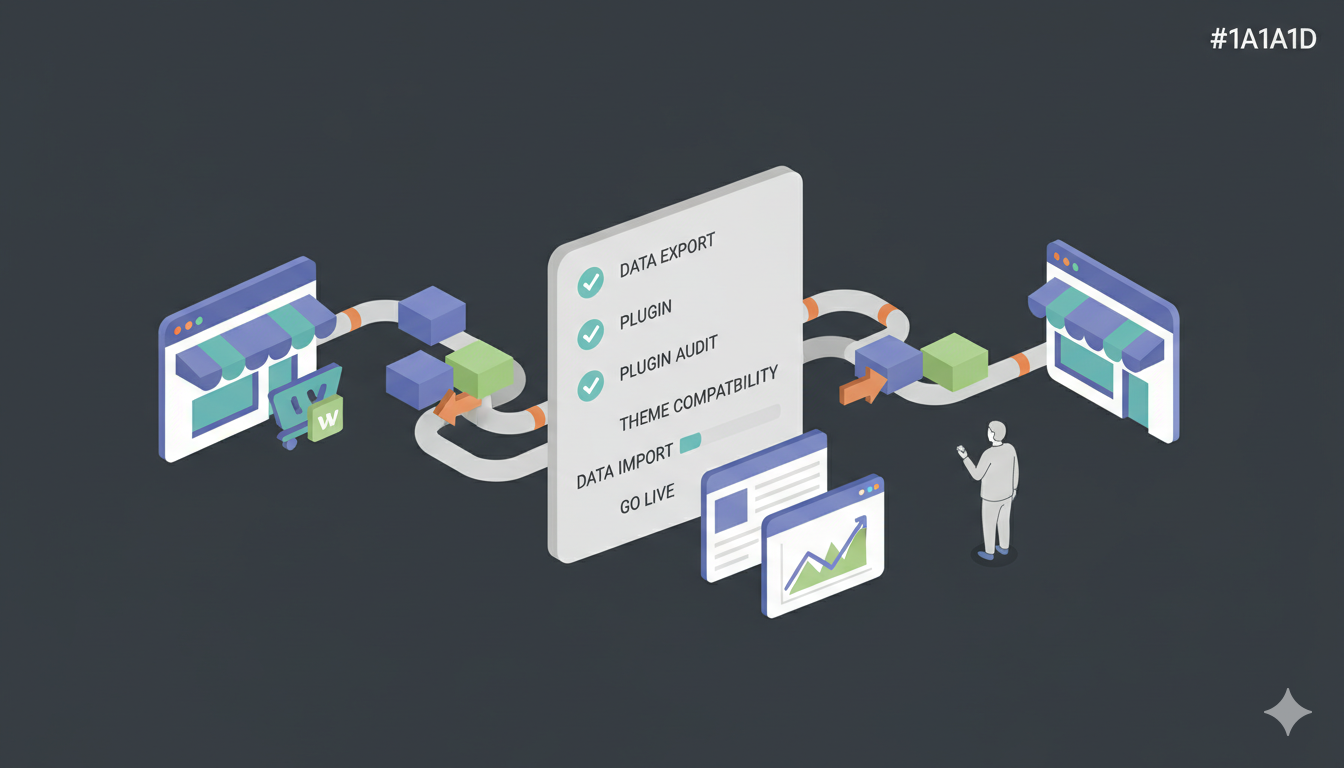
Success is in the details. Moving your eCommerce business to Shopify is a major step toward scalability and ease of management, but it requires precision. To ensure you don't lose a single order, customer, or SEO ranking, we have compiled this comprehensive, step-by-step checklist. Use this to track your progress from your current platform to your new Shopify store.
Phase 1: Pre-Migration Preparation
Before you move a single piece of data, you must secure your assets and prepare the environment. A messy preparation leads to a messy migration.
1. Audit Your Current Store
- Clean up data: Delete test orders, spam customers, and obsolete products. Don't pay to migrate data you don't need.
- Audit apps/extensions: List every app you currently use (e.g., Rewards, Subscriptions) and find their Shopify equivalents in the Shopify App Store.
- Record SEO benchmarks: Note your current organic traffic, domain authority, and keyword rankings to compare after the move.
- Document custom features: List any custom functionality that needs to be replicated with Shopify apps or custom development.
2. Secure Your Data (Backups)
- Database Backup: Export your full database (SQL, CSV, or XML) from your current platform.
- Media Backup: Download all product images, banners, and digital assets.
- Theme Files: Keep a copy of your old design files for reference, even though they won't work on Shopify.
- Export Product Data: Most platforms allow CSV export of products—do this as an additional safety net.
3. Prepare the Target Environment (Shopify)
- Create Shopify Account: Sign up for the appropriate Shopify plan (Basic, Shopify, or Advanced) based on your needs.
- Choose a Theme: Browse the Shopify Theme Store and select a theme (free or premium) that aligns with your brand vision.
- Password Protect Store: Go to Online Store > Preferences and enable password protection to keep your store private during setup.
- Configure Basic Settings: Set up store name, contact information, timezone, and currency in Settings > General.
- Install SSL Certificate: Shopify provides SSL certificates automatically—ensure your store shows as secure (HTTPS).
Phase 2: The Data Migration (Using Migration Shop)
This is the core of the process. Using an automated tool like Migration Shop reduces weeks of manual entry into a few hours of processing.
4. Connect Your Stores
- Source Cart Credentials: Gather your current store's URL and API details (or install the Connector Bridge if required).
- Target Cart Credentials: Input your new Shopify store URL and provide API credentials (create a private app in Shopify admin with read/write permissions).
5. Select Entities to Migrate
Check the boxes for the data you want to transfer:
- Products: Names, SKUs, prices, quantities, variants (color/size).
- Product Collections: Structure and hierarchy.
- Customers: Names, emails, phone numbers, addresses.
- Orders: History, status, transaction IDs, dates.
- Discount Codes: Codes and discount rules.
- Pages: "About Us," "Contact," and other static pages.
- Blog Posts: Articles and blog content.
- Product Reviews: Customer feedback and ratings.
6. Configure Advanced Options
- Migrate Images in Descriptions: Ensure images embedded in HTML descriptions are downloaded to Shopify's CDN.
- Preserve Order IDs: Keep your order numbers the same (e.g., Order #1001 remains #1001) if possible.
- Strip HTML tags: Optional, if you want to clean up formatting from the old platform.
- Create 301 Redirects: (Highly Recommended) Automatically map old URLs to new Shopify URLs.
- Map Product Variants: Ensure size, color, and other options transfer correctly as Shopify variants.
7. Run Demo & Full Migration
- Run Demo Migration: Transfer a limited number of entities to verify the data structure.
- Review Demo Results: Check if product variants and images are displaying correctly on the Shopify storefront.
- Launch Full Migration: Start the process and let it run in the background.
Phase 3: Post-Migration Configuration
The data is there, but the store isn't functional yet. Now you must build the "house" around the furniture.
8. Design and Theme
- Customize Theme: Go to Online Store > Themes and customize colors, fonts, and layout.
- Customize Homepage: Set up your homepage sections, featured products, and banners.
- Navigation Setup: Go to Online Store > Navigation and create your main menu and footer menu.
- Footer Setup: Configure footer links, social media icons, and newsletter signup.
9. Store Functionality
- Payment Gateways: Go to Settings > Payments to configure Shopify Payments, Stripe, PayPal, or other providers. (Credentials are never migrated for security).
- Shipping Zones: Go to Settings > Shipping and delivery to set up flat rates, free shipping, or carrier integrations (USPS, FedEx, UPS).
- Taxes: Configure tax rates manually in Settings > Taxes or enable automatic tax calculation for supported regions.
- Email Notifications: Customize the "Order confirmation" and "Order shipped" email templates in Settings > Notifications to match your branding.
10. Customer Access
- Password Verification: If your source cart supported password migration (e.g., WooCommerce/Magento), test a customer login. If not (e.g., BigCommerce/Wix), prepare an email campaign for password resets.
- Customer Account Pages: Review and customize customer account pages in your theme settings.
Phase 4: Testing and QA
Do not go live until you have acted as a customer.
11. Functional Testing
- The Purchase Funnel: Add a product to the cart, go to checkout, and complete a purchase using Shopify's test mode.
- Guest vs. Registered Checkout: Test both scenarios.
- Discount Codes: Try applying a migrated discount code to ensure logic is preserved.
- Contact Forms: Test your contact page and ensure emails land in your inbox (check spam folders).
- Search Functionality: Test the store search to ensure products are findable.
12. SEO Preservation
- Check Redirects: Click on an old URL from your previous store (e.g., from a Google search result) and ensure it redirects to the new Shopify product page.
- 404 Monitor: Use Shopify's built-in URL redirects feature or install an app to monitor for broken links.
- Generate Sitemap: Shopify automatically generates a sitemap at
yourstore.com/sitemap.xml. Verify it's accessible. - Submit to Google: Submit your sitemap to Google Search Console.
Phase 5: Go Live
The finish line. It's time to switch the traffic flow.
13. Recent Data Migration (The Bridge)
Since your old store was live while you were setting up Shopify, new orders may have come in.
Action: Run the Migration Shop "Recent Data Migration" service to fetch only the data added since the Full Migration started. This prevents duplicate data and ensures no order is left behind.
14. Domain Switch (DNS)
- Connect Domain: Go to Settings > Domains in Shopify and connect your custom domain.
- Update DNS Records: Point your domain's A record or CNAME to Shopify's servers (instructions provided in Shopify admin).
- Propagate: Wait for DNS propagation (can take 1-48 hours, typically 24 hours).
- Verify SSL: Ensure your domain shows as secure (HTTPS) in Shopify.
15. Post-Launch Activities
- Remove Password Protection: Disable the password page in Online Store > Preferences.
- Submit Sitemap: Upload your new sitemap to Google Search Console.
- Monitor Performance: Use Shopify Analytics to track traffic and sales.
- Terminate Old Store: Only cancel your old store subscription once you are 100% sure the new store is stable (usually wait 1-2 weeks).
Need help checking off these boxes?
Migration Shop handles the heavy lifting of Phase 2 and provides support for the tricky technical aspects of data mapping. Don't risk your data doing it manually.