Fixing Currency Display Issues After Switching Translation Apps in Shopify
Understanding Currency Display Issues After App Changes in Shopify
This article analyzes a Shopify Community forum discussion where a user, MaikNolte, encountered an issue after switching translation apps. The problem: the string "" was appearing in the quick order list when the store's native currency (€) was selected. This didn't happen with other currencies like USD or AUD.
The original forum post can be found here: Shopify Community Forum Discussion
Analyzing Community Solutions
The Shopify community offered several potential solutions, each addressing a different aspect of the problem. Let's break down these suggestions and provide actionable steps.
1. Checking Currency Formatting Settings
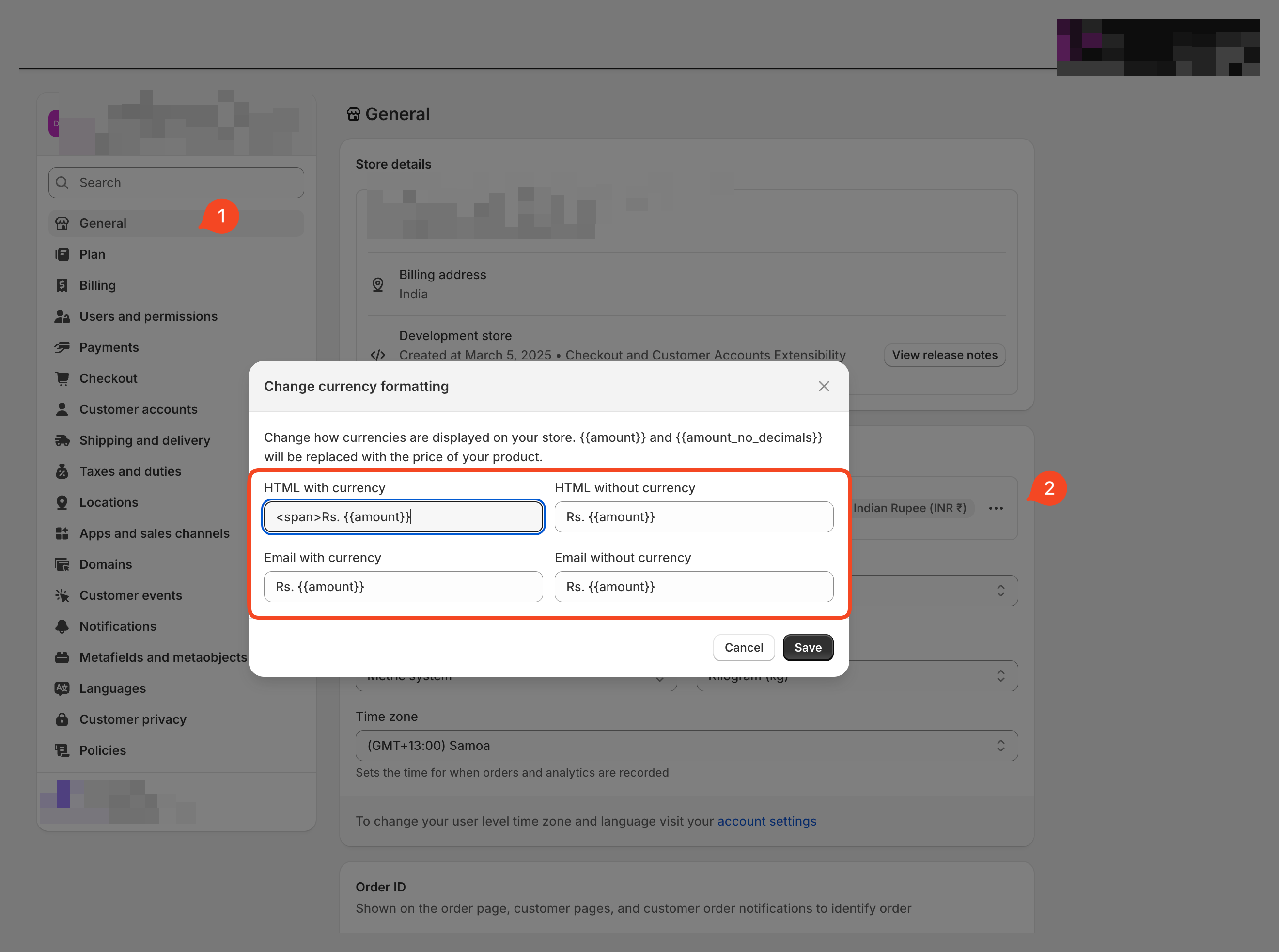
Abel_Lesle suggested that the issue might stem from the default currency formatting containing the problematic . The provided screenshot highlights where these settings can be found:
Actionable Steps:
- Navigate to Settings > Store details in your Shopify admin.
- Scroll down to the Store currency section and click Change formatting.
- Examine the HTML with currency and HTML without currency fields.
- Remove any unwanted HTML tags, specifically
, from these fields. - Save your changes.
- Clear your browser cache and check the quick order list again.
2. Identifying the App Conflict
Coding-with-Jan suggested a process of elimination: temporarily disable the new translation app. If the issue disappears, the app is likely injecting incorrect HTML or translation markup.
Actionable Steps:
- Go to Apps in your Shopify admin.
- Disable the recently installed translation app.
- Refresh the quick order list on your storefront.
- If the problem is resolved, contact the app developer for assistance. They might need to adjust the app's code to ensure compatibility with your theme.
3. Examining Locale Files and Translation Keys
PaulNewton pointed to a potential problem with translation content containing HTML that isn't properly flagged. Shopify uses locale files to manage translations, and if HTML is included in a translation without the _html suffix on the translation key, it might be escaped and displayed as plain text.
Actionable Steps:
- Access your theme's code by going to Online Store > Themes, then click Actions > Edit code.
- Locate the locale files, typically in the
localesfolder. - Inspect the translation keys related to currency formatting, especially those used in the quick order list.
- If you find HTML within a translation, ensure the translation key ends with
_html. For example: - If the
_htmlsuffix is missing, add it and save the changes. - If you are using a third-party translation app, the app may be overriding your theme’s locale files. Contact the app developer.
"products.product.price_html": "{{ price }}"
Specific Currency Considerations
MaikNolte noted that the issue only occurred with the Euro (€). This suggests a problem specific to the Euro's currency formatting or translation within the app. The image provided by MaikNolte demonstrates how the issue presents itself:

Troubleshooting Steps:
- Within the translation app, specifically review the Euro (€) currency settings and formatting.
- Check for any custom overrides or rules that might be injecting the
tag. - Compare the Euro settings with other currencies that are displaying correctly.
Conclusion
Resolving currency display issues after switching translation apps in Shopify often involves a combination of checking currency formatting settings, identifying app conflicts, and examining locale files. By systematically working through these steps, store owners and developers can effectively troubleshoot and fix these problems, ensuring a consistent and professional shopping experience for their customers.